
 By PrestaTips
Have you forgotten your PrestaShop password and don’t know how to regain access to your store? Don’t panic, it’s simpler than you think. Whether you are using PrestaShop 1.6, 1.7 or version 8, here is the step-by-step procedure
Are you using a newer version? Check out our PrestaShop 9 guide.
The classic method: reset by email
Most of the time, everything happens in just a few clicks. Here’s how to do it:
- Step 1: Go to the login page PrestaShop.
- Step 2: Click “Forgot your password?” (or “I forgot my password” depending on your version).
- Step 3: Enter the email address linked to your administrator account.
- Step 4: Check your mailbox and follow the reset link sent by PrestaShop.
- Step 5: Choose a new password (remember to write it down somewhere this time!).
And there you have it, you can access your store again!
If email does not work: manual reset via database
Sometimes the reset email fails (server problem, outdated email address, etc.). In this case, you have to go through the database. Don’t worry, I’ll guide you:
- Step 1: Go to your hosting (cPanel, Plesk, or other) and open phpmyadmin.
- Step 2: Select the database of your PrestaShop store.
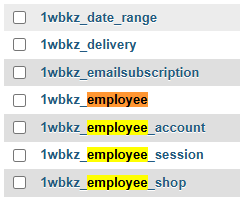
- Step 3: Look for the table
ps_employee(the prefix may vary, for exampleprst_). - Step 4: Find your administrator account in the list and click “to modify”.
- Step 5: In the field
passwd, replace the content with: Copy$2y$10$v5ZJQ4u7cX9hL5v5ZJQ4u7cX9hL5v5ZJQ4u7cX9hL5v5ZJQ4u7cX9(It’s a temporary password:admin123. Remember to change it after connection!) - Step 6: Register and log in with the temporary password.
Warning: this method should be used with caution. If you’re not comfortable with databases, ask for help!

Tips to avoid forgetting things in the future
To no longer find yourself stuck:
- Use one password manager (like Bitwarden or 1Password).
- Write down your credentials in a secure file (not on a post-it!).
- Activate it double authentication if your version of PrestaShop allows it.
Resetting a PrestaShop password is like changing a bike wheel: it seems complicated the first time, but once you get the hang of it, it’s child’s play. If you have followed these steps and it still does not work, check that you are using the correct email address or contact your hosting support. And above all, breathe: everything will be fine!
[…] Reset a password on Prestashop 1.6/1.7/8 […]